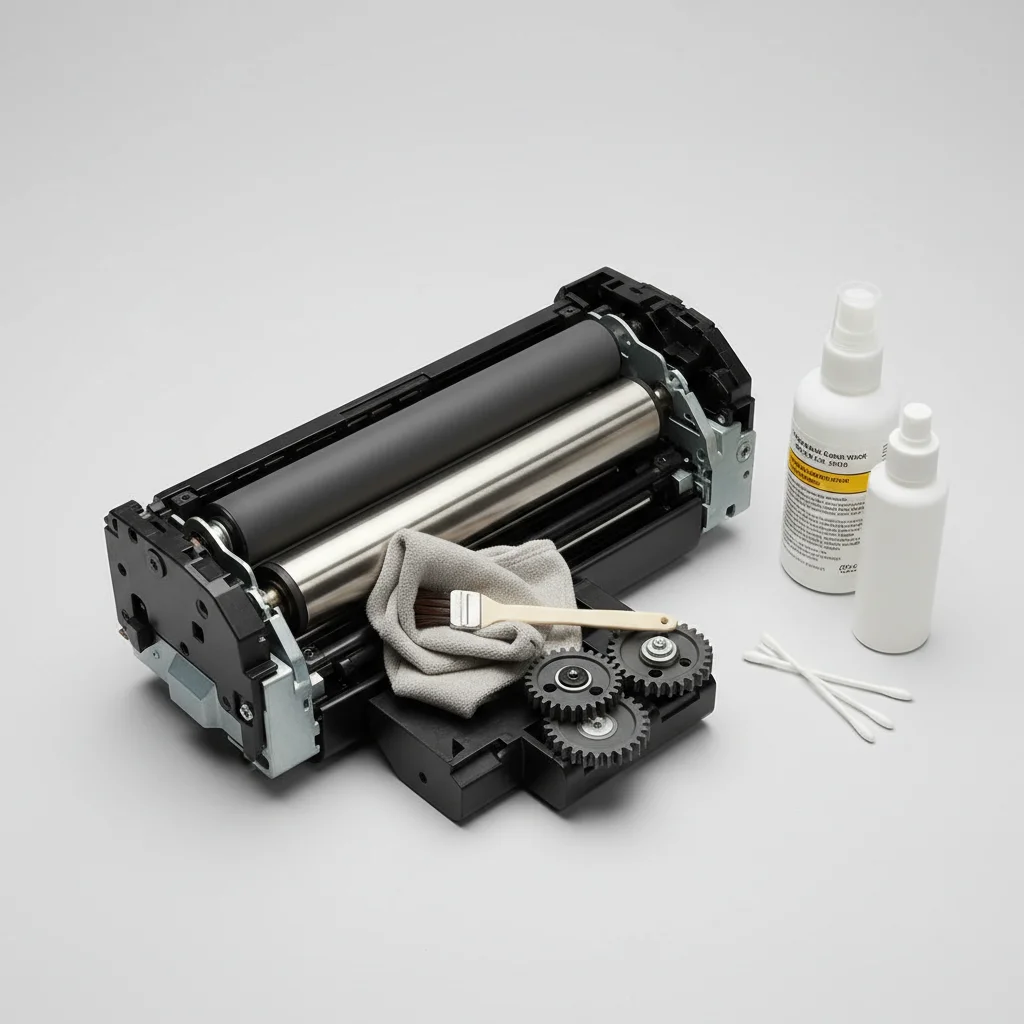
Cleaning the fuser unit in a laser printer is a critical maintenance task that should typically be performed every 50,000 to 100,000 pages, or whenever print quality issues like streaks or smudges appear. The fuser unit is responsible for bonding toner to the paper using heat and pressure, and a dirty fuser can lead to significant print defects. While some fusers are designed to be user-replaceable, cleaning them often requires careful attention to avoid damage to this sensitive component.
Understanding the Fuser Unit’s Role
The fuser unit is arguably one of the most important components in a laser printer. After the toner is transferred to the paper, it passes through the fuser, which consists of a heated roller and a pressure roller. The heat melts the toner, and the pressure presses it into the paper fibers, creating a permanent image. Over time, toner dust, paper fibers, and other debris can accumulate on the fuser rollers, leading to print quality degradation. This accumulation can manifest as smudges, streaks, or even incomplete fusing, where toner can be easily rubbed off the page.
When to Clean Your Fuser Unit
The frequency of fuser cleaning largely depends on your printer’s usage and the manufacturer’s recommendations. For typical home or small office use, cleaning might be necessary every few years. In high-volume environments, however, it could be a quarterly or even monthly task. Always consult your printer’s manual for specific guidelines. Common indicators that your fuser needs attention include:
- Repeated smudges or streaks on printed pages.
- Toner not adhering properly to the paper.
- Unusual noises coming from the printer during operation.
- Error messages related to the fuser unit.
- A noticeable decrease in overall print quality.
Safety Precautions Before Cleaning
|
Our Picks for the Best Laser Printer in 2026
As an Amazon Associate I earn from qualifying purchases.
|
||
| Num | Product | Action |
|---|---|---|
| 1 | Brother HLL3280CDW Wireless Compact Color Laser Printer, Duplex, Mobile Printing & Ethernet | Includes 2 Month Refresh Subscription Trial¹, Amazon Dash Replenishment Ready (Renewed Premium) |

|
| 2 | Brother HL-L2460DW Wireless Compact Monochrome Laser Printer with Duplex, Mobile Printing, Black & White Output | Includes Refresh Subscription Trial(1), Works with Alexa |
|
| 3 | Brother MFC-L2820DW Wireless Compact Monochrome All-in-One Laser Printer with Copy, Scan and Fax, Duplex, Black & White | Includes Refresh Subscription Trial(1), Works with Alexa |
|
| 4 | HP LaserJet MFP M235sdw All-in-One Laser Wireless Printer, Scan/Copy, Black & White, Duplex, Best-for-Office |
|
| 5 | Brother HLL6210DW Business Monochrome Laser Printer with Large Paper Capacity, Wireless and Gigabit Ethernet Networking, Advanced Security Features and Mobile Printing (Renewed Premium) |
|
| 6 | Canon imageCLASS MF284dw Wireless Black & White Laser Printer – All-in-One for Home Use, Print/Copy/Scan, 2-Sided Printing, 35 PPM, Auto Doc Feeder, Mobile Device Compatible, Starter Toner Included |
|
| 7 | Brother HL-L2405W Wireless Compact Monochrome Laser Printer with Mobile Printing, Black & White Output | Includes Refresh Subscription Trial(1), Works with Alexa |
|
| 8 | HP Laserjet MFP M234dw Wireless Printer, Print, scan, Copy, Fast speeds, Easy Setup, Mobile Printing, Best-for-Small Teams, Instant Ink Eligible |
|
| 9 | Brother DCP-L2640DW Wireless Compact Monochrome Multi-Function Laser Printer with Copy and Scan, Duplex, Black & White Output | Includes Refresh Subscription Trial(1), (Renewed Premium) |
|
| 10 | Brother DCP-L2640DW Wireless Compact Monochrome Multi-Function Laser Printer with Copy and Scan, Duplex, Mobile, Black & White | Includes Refresh Subscription Trial(1), Works with Alexa |
|
Before attempting to clean your fuser unit, safety is paramount. Fuser units operate at very high temperatures, so it’s crucial to allow the printer to cool down completely for at least 30 minutes after being turned off and unplugged. Failure to do so can result in severe burns. Additionally, always wear protective gloves to prevent skin contact with toner and to avoid leaving fingerprints on the fuser’s delicate surfaces. Gather the necessary tools, which typically include lint-free cloths, isopropyl alcohol, and a small brush.
Step-by-Step Fuser Cleaning Process
The exact steps for cleaning a fuser unit can vary by printer model, but a general procedure involves:
- Turn off and unplug the printer, allowing it to cool.
- Open the printer’s access panels to locate the fuser unit. Refer to your printer’s manual for its precise location and removal instructions.
- Carefully remove the fuser unit. It is often secured by clips or screws.
- Gently wipe the fuser rollers with a lint-free cloth lightly dampened with isopropyl alcohol. Pay close attention to any visible toner buildup or debris.
- Use a small brush to remove any loose toner or paper dust from the surrounding area.
- Allow the fuser to air dry completely before reinstalling it.
- Reinstall the fuser unit, close all access panels, and plug in the printer.
- Perform a test print to verify improved print quality.
If you are uncomfortable performing this task yourself, or if the fuser unit is not easily accessible, it is always best to consult a professional printer technician. Improper handling can damage the fuser, leading to costly repairs or replacement.
Maintaining Fuser Health for Longevity
Beyond periodic cleaning, several practices can help extend the life of your fuser unit. Using high-quality paper that is free of dust and debris can significantly reduce the amount of foreign material that comes into contact with the fuser. Additionally, using genuine toner cartridges, as opposed to third-party alternatives, can prevent issues caused by incompatible toner formulations. Regularly cleaning other printer components, such as the drum unit and transfer belt, can also contribute to overall printer health and reduce the burden on the fuser.
Get our weekly buyer guide
Practical specs, not advice. Unsubscribe anytime.

My office printer started leaving faint lines, and I suspected it was the fuser. The explanation of how the heated roller and pressure roller work really helped me understand the problem. After a careful cleaning, the lines are gone, and our documents look professional again. Definitely worth the time to do this maintenance.
I tried cleaning my fuser unit after hitting about 75,000 pages, hoping to avoid buying a new one. While the instructions were clear, I still found it pretty challenging to avoid touching the sensitive components. My print quality improved slightly, but I think next time I might just opt for a professional cleaning or replacement if the issue persists.
This was really helpful for understanding why my pages were coming out with streaks. I usually just replace parts, but cleaning the fuser unit myself saved me some money. It was a bit fiddly to get to the unit in my specific model, but the general guidance on what to look for was spot on.
I’ve been having issues with smudges on my printouts for weeks and couldn’t figure out why. Following the steps to clean the fuser unit made a huge difference! My prints are crisp and clear again, just like when the printer was new. It’s amazing how much difference a little maintenance can make.