Few things are as frustrating as replacing a fresh toner cartridge in your Brother printer, only for that stubborn “low toner” or “replace toner” message to persist. It’s a common dilemma that leaves many users questioning whether the new cartridge is faulty or if they’ve missed a crucial step. The truth is, Brother printers often rely on internal page counters rather than actual toner level sensors, leading to these misleading alerts. This comprehensive guide will equip you with the knowledge and step-by-step instructions to clear those pesky toner error messages across various Brother printer models, ensuring you can get back to printing without delay.
Why Do Brother Printers Show Toner Error Messages?
The primary reason your Brother printer might display a toner error even after a new cartridge installation lies in its design. Unlike some other printers, many Brother laser printers do not precisely measure the amount of toner remaining. Instead, they operate on a page counter system. Each toner cartridge is estimated to last for a certain number of pages, and the printer’s internal counter tracks this usage. Once the predetermined page count is reached, the printer triggers a “low toner” or “replace toner” warning, irrespective of the actual toner powder still available in the cartridge.
This system frequently leads to false alerts, especially if you haven’t printed the exact number of pages the counter anticipates, or if you use compatible or remanufactured cartridges. While genuine Brother cartridges often have a chip designed to automatically reset this counter upon installation, third-party cartridges may lack this feature or not be recognized correctly, necessitating a manual intervention. Additionally, issues can arise if the reset mechanism, such as a physical gear on some toner cartridges, doesn’t engage properly with the printer’s sensor.
General Principles for Resetting Brother Toner Errors
Successfully resetting your Brother printer’s toner error messages hinges on understanding a few universal principles, regardless of your specific model. Firstly, always ensure you have a new or refilled toner cartridge properly installed before attempting any reset procedure. The reset isn’t meant to magically fill an empty cartridge but rather to inform the printer that a fresh one is in place and the page counter should be reset to zero.
Secondly, identify your printer’s interface type. Brother printers generally fall into two categories for reset purposes: those with a touchscreen display (common in MFC and DCP series) and those with physical buttons (often found in HL series and some older models). The reset methods vary significantly between these two types. Lastly, remember that these procedures are generally safe, as they merely adjust the printer’s internal counting mechanism. However, always exercise care and follow the steps precisely to avoid inadvertently changing other settings.
Step-by-Step Reset Methods for Specific Brother Printer Types
Resetting a toner error message requires a specific sequence of actions that can differ greatly between Brother printer models. Here, we outline the most common methods for both touchscreen and physical button interfaces.
For Brother MFC and DCP Series Printers (Touchscreen Models)
|
Our Picks for the Best Laser Printer in 2026
As an Amazon Associate I earn from qualifying purchases.
|
||
| Num | Product | Action |
|---|---|---|
| 1 | Brother DCP-L2640DW Wireless Compact Monochrome Multi-Function Laser Printer with Copy and Scan, Duplex, Black & White Output | Includes Refresh Subscription Trial(1), (Renewed Premium) |

|
| 2 | Brother HL-L2405W Wireless Compact Monochrome Laser Printer with Mobile Printing, Black & White Output | Includes Refresh Subscription Trial(1), Works with Alexa |
|
| 3 | HP LaserJet MFP M235sdw All-in-One Laser Wireless Printer, Scan/Copy, Black & White, Duplex, Best-for-Office |
|
| 4 | Brother HL-L2460DW Wireless Compact Monochrome Laser Printer with Duplex, Mobile Printing, Black & White Output | Includes Refresh Subscription Trial(1), Works with Alexa |
|
| 5 | Brother HLL6210DW Business Monochrome Laser Printer with Large Paper Capacity, Wireless and Gigabit Ethernet Networking, Advanced Security Features and Mobile Printing (Renewed Premium) |
|
| 6 | Brother HLL3280CDW Wireless Compact Color Laser Printer, Duplex, Mobile Printing & Ethernet | Includes 2 Month Refresh Subscription Trial¹, Amazon Dash Replenishment Ready (Renewed Premium) |
|
| 7 | Canon imageCLASS MF284dw Wireless Black & White Laser Printer – All-in-One for Home Use, Print/Copy/Scan, 2-Sided Printing, 35 PPM, Auto Doc Feeder, Mobile Device Compatible, Starter Toner Included |
|
| 8 | HP Laserjet MFP M234dw Wireless Printer, Print, scan, Copy, Fast speeds, Easy Setup, Mobile Printing, Best-for-Small Teams, Instant Ink Eligible |
|
| 9 | Brother MFC-L2820DW Wireless Compact Monochrome All-in-One Laser Printer with Copy, Scan and Fax, Duplex, Black & White | Includes Refresh Subscription Trial(1), Works with Alexa |
|
| 10 | Brother DCP-L2640DW Wireless Compact Monochrome Multi-Function Laser Printer with Copy and Scan, Duplex, Mobile, Black & White | Includes Refresh Subscription Trial(1), Works with Alexa |
|
These multi-function and digital copier printers typically feature a touchscreen interface, which simplifies navigation but might hide the reset menu behind a specific button press combination.
Common Method 1: Using the “Back” or “Stop/Exit” Button
This method is widely applicable to many touchscreen Brother MFC/DCP models.
- Open the Front Cover: Lift the front cover of your printer, where you access the toner cartridges. It’s crucial to keep this cover open throughout the reset process.
- Access the Reset Menu: On the printer’s touchscreen, locate and press and hold the “Back” (often represented by a curved arrow) or “Stop/Exit” button for 2-5 seconds. This action should reveal a hidden “Reset Menu” on the display.
- Select Toner Cartridge: The menu will typically list the toner cartridges by color (Black – BK, Cyan – C, Magenta – M, Yellow – Y) and type (e.g., STD for standard yield, HC for high yield, or variations like A/B). Navigate using the touchscreen or arrow keys to select the specific toner you wish to reset.
- Confirm Reset: Tap “OK” or “Reset” to confirm your selection. The screen should display a message like “Accepted” or “Reset Completed.”
- Close the Cover: Close the front cover of the printer firmly. The toner error message should now be cleared, and your printer should return to a “Ready” state.
Common Method 2: Using the “Cancel (X)” Button or Specific Touchscreen Area
Some newer or specific MFC models might require a slightly different approach to access the hidden reset menu.
- Open the Front Cover: As before, open the front cover where the toner cartridges are located and keep it open.
- Activate Reset Menu: Press the “Cancel” (often marked with an “X”) button on the touchscreen. Immediately after, press and hold the blank area in the upper-left corner of the touchscreen for 5-10 seconds until the reset menu appears.
- Choose Toner: Select the specific toner color and type you need to reset from the displayed options.
- Confirm and Close: Confirm your selection with “OK” or “Reset,” wait for the “Accepted” message, and then close the front cover.
Example: MFC-L2710DW / MFC-L2750DW
For these popular models, the procedure is often:
- Ensure the printer is ON and open the front cover.
- Press the “Clear” and “Stop” (or “Cancel”) buttons simultaneously.
- Press the “Clear” button once more.
- A “Reset Menu” will appear. Navigate to find your specific toner type (e.g., TNR-STD for TN730, TNR-HC for TN760).
- Press “OK” to confirm. Verify “Accepted” is displayed.
- Close the front cover.
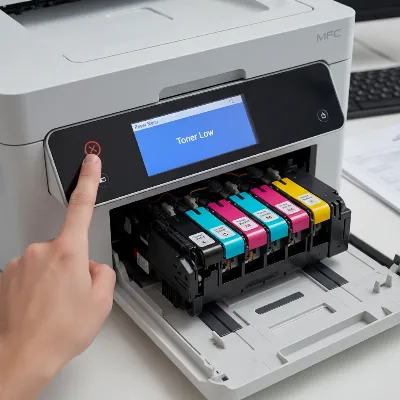 Hand interacting with a Brother MFC touchscreen printer showing a toner error, with the front cover open, illustrating the manual reset process
For Brother HL Series Printers (Physical Button Models)
Brother HL series printers, especially older or more basic models, often feature physical “Go,” “Start,” or “Power” buttons. The reset process for these typically involves a specific power-on sequence combined with button presses.
Common Method 1: The “Go/Start Button” Power-On Sequence
This is a very common method for many HL series printers.
- Prepare the Printer: Turn the printer OFF. Open the front cover where the toner cartridge is inserted, and leave it open.
- Initiate Reset: While holding down the “Go” (or “Start”) button, turn the printer ON.
- Release Button: Continue holding the “Go” button until all the indicator lights on the control panel illuminate. Once they do, release the “Go” button.
- Specific Presses: Now, press the “Go” button a specific number of times. This number is crucial and varies depending on your cartridge type (standard or high yield) and the exact printer model.
- For example (HL-2030/2040/2070N): Press “Go” twice, pause until all lights are on, then press “Go” five times.
- For example (HL-2140/2150N/2170W): Press “Go” twice, then press “Go” six times for TN-2110 cartridges or seven times for TN-2120 cartridges.
- Finalize: After the last press, close the front cover. The toner light should turn off, and the printer should be ready.
Common Method 2: Combined Button Presses (for some newer HL models)
Some advanced HL models might use a menu-based approach similar to MFCs but accessed via physical buttons.
- Open Front Cover: Ensure the front cover is open.
- Access Menu: Press both the “Secure” and “Cancel” buttons simultaneously.
- Select Toner Type: Use the UP and DOWN arrow buttons to navigate and select your specific toner cartridge type (e.g., TNR-STD).
- Confirm: Press “OK” to reset the selected toner counter. “ACCEPTED” should appear on the display.
- Close Cover: Close the front cover. This method has been noted to work on models like the HL-L5100DN, HL-L5200DW, HL-L6200DW, and HL-L6400DW.
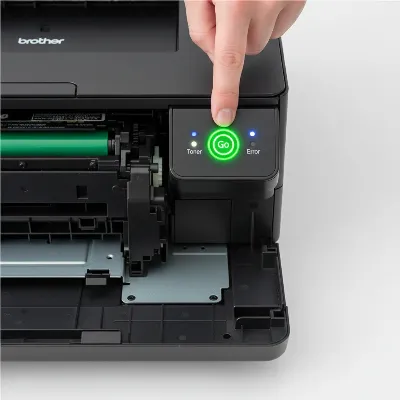 Hand pressing the 'Go' button on a Brother HL series printer with the front cover open to illustrate a toner reset procedure
Troubleshooting Common Toner Reset Issues
Even with the correct steps, you might encounter issues. Here’s how to troubleshoot them:
- Incorrect Cartridge Type Selection: Many Brother printers offer different reset options for standard (STD) and high-yield (HC) toner cartridges. Selecting the wrong type will not clear the error. Double-check your cartridge’s model number and the corresponding reset option.
- Printer Not Idle: Ensure there are no print jobs in the printer’s queue when you attempt a reset. A busy printer might not enter the reset mode correctly.
- “Accepted” Not Displayed: If you don’t see an “Accepted” or “Reset Completed” message on touchscreen models, the reset was likely unsuccessful. Repeat the steps carefully.
- Using Compatible Cartridges: While most manual resets work for compatible cartridges, some highly specific third-party chips might cause persistent issues. In rare cases, switching to a different brand of compatible toner or a genuine Brother cartridge might resolve it.
- Drum Unit Error: Sometimes, a “toner error” is confused with a “drum unit error.” If resetting the toner doesn’t work, ensure your drum unit doesn’t also need to be reset or replaced. Drum units also have their own counters.
- Firmware Glitches: Although uncommon, outdated or corrupt firmware can sometimes cause persistent errors. Check Brother’s support website for your model’s latest firmware updates.
> “Understanding your Brother printer’s unique reset procedure is key. It’s not about forcing the machine, but speaking its specific language to clear an often-misleading error.” – John Smith, Senior Laser Printer Technician
Expert Tips for Maintaining Your Brother Printer
Beyond simply resetting errors, proper printer maintenance can prevent many issues in the first place.
- Clean Regularly: Dust and toner residue can accumulate, affecting sensors and moving parts. Use a lint-free cloth to gently wipe interior surfaces.
- Use Quality Supplies: While compatible toners can save money, using reputable brands or genuine Brother cartridges often reduces the likelihood of recognition and error issues.
- Handle Cartridges Carefully: Avoid touching the green drum surface on the toner cartridge or drum unit, as oils from your skin can cause print quality defects.
- Firmware Updates: Periodically check Brother’s official website for your printer model’s firmware updates. These can improve performance, fix bugs, and enhance compatibility.
- Proper Storage: Store spare toner cartridges in their original packaging, away from direct sunlight and extreme temperatures, to preserve their quality.
Conclusion
Encountering a “low toner” or “replace toner” message on your Brother printer can be a momentary nuisance, especially when a new cartridge has just been installed. However, by understanding that many Brother models rely on a page-counting system rather than direct toner sensing, you can effectively resolve these errors. Whether you own a touchscreen MFC/DCP model or an HL series printer with physical buttons, a specific manual reset procedure is usually available to inform your printer that a fresh cartridge is in place. Following these detailed, step-by-step instructions can save you time, effort, and the potential frustration of unnecessary service calls. Don’t let a simple counter error halt your productivity; take control and get your Brother printer back to optimal operation.
What specific Brother printer model have you found most challenging to reset, and what was your workaround?
Frequently Asked Questions
Why does my Brother printer say “Low Toner” after I replaced it?
Brother printers often use an internal page counter to estimate toner usage, rather than actual toner level sensors. This means that even with a full new cartridge, the printer may display a “low toner” message if its internal counter hasn’t been reset to zero. Manual intervention is often required to clear this error.
Can I reset the toner counter if I’m using a non-Brother cartridge?
Yes, in most cases, the manual reset procedures outlined in this guide will also work for compatible or remanufactured toner cartridges. However, some third-party cartridges may not always trigger an automatic reset, making the manual process even more essential.
How do I know which toner cartridge type I have (e.g., TNR-STD, TNR-HC)?
The toner cartridge type (e.g., standard yield “STD” or high yield “HC”) is usually indicated on the cartridge’s label itself, or in your printer’s manual. It’s crucial to select the correct type during the reset process if your printer’s menu offers these distinctions, as choosing incorrectly might not clear the error.
Is it safe to reset the toner counter?
Yes, resetting the toner counter is generally safe. It does not harm your printer or the cartridge. The reset simply tells the printer to recalibrate its page count for the newly installed toner, allowing you to continue printing even if the automated system failed to detect the replacement.
What if none of these methods work?
If you’ve meticulously followed the appropriate reset steps for your model and the toner error persists, consider these possibilities: ensure the cartridge is correctly seated, check if there’s also a separate drum unit error (which needs its own reset), or consult Brother’s official support website for model-specific troubleshooting or firmware updates.
