Connecting a laser printer wirelessly without a traditional Wi-Fi router is possible through several direct methods, including Wi-Fi Direct, Bluetooth, USB, and direct Ethernet connections. Wi-Fi Direct is the most versatile, allowing devices to connect peer-to-peer, while USB offers the simplest plug-and-play solution for a single computer. These alternatives ensure seamless printing in environments lacking a shared network, such as remote offices or temporary workspaces.
Beyond the Router: Understanding Direct Wireless Connections for Laser Printers
When we talk about “wireless printing,” the first image that often comes to mind is a printer connected to a home or office Wi-Fi network, allowing any device on that same network to print. This setup relies on a central router to manage communication between all devices. However, this isn’t the only form of wireless or direct connectivity available, particularly for laser printers.
Laser printers are renowned for their speed, precision, and efficiency, making them a staple in both high-volume office environments and busy home settings. Their ability to produce crisp text and graphics quickly is a major advantage. Understanding how to leverage their connectivity features beyond a standard Wi-Fi router opens up a world of flexibility, letting you capitalize on these benefits even in situations where a Wi-Fi network isn’t available or desired.
Direct Wireless Methods: Printing Without a Wi-Fi Network
For those moments when a Wi-Fi router isn’t present or you prefer a point-to-point connection, several direct wireless methods allow your laser printer to communicate with your devices. These options offer flexibility and security by removing the need for a shared network infrastructure.
Wi-Fi Direct: Your Instant Wireless Link
Wi-Fi Direct is perhaps the most versatile solution for wireless printing without a traditional router. This technology allows two Wi-Fi-enabled devices to establish a direct, peer-to-peer connection without needing an intermediary access point. Your laser printer acts as its own mini Wi-Fi hotspot, allowing your smartphone, tablet, or computer to connect directly to it.
The primary advantage of Wi-Fi Direct is its simplicity and independence from a router. This can be particularly beneficial in temporary setups, shared office spaces where network access is restricted, or when you need a secure, isolated connection. It’s also often faster than Bluetooth for sending larger print jobs, making it ideal for the rapid output characteristic of laser printers.
Step-by-Step Connection Guide:
- Activate Wi-Fi Direct on Your Printer: Most modern laser printers with Wi-Fi capabilities support Wi-Fi Direct. You’ll typically find an option to enable it in the printer’s control panel settings, often under “Network,” “Wireless,” or “Wi-Fi Direct.”
- Locate Printer’s Wi-Fi Direct Name (SSID) and Password: Once enabled, your printer will display a unique network name (SSID), usually starting with “DIRECT-” followed by the printer model or a unique identifier. It will also provide a password (or “Passkey” or “PIN”) for this network. This information might appear on the printer’s display, a printed configuration report, or a sticker on the printer itself.
- Connect Your Device: On your computer (Windows/macOS) or mobile device (Android/iOS), go to your Wi-Fi settings. You will see the printer’s Wi-Fi Direct SSID appear in the list of available networks. Select it and enter the password when prompted.
- Add Printer to Your Device: Once your device is connected to the printer’s Wi-Fi Direct network, open your device’s printer settings (e.g., “Printers & scanners” on Windows, “Printers & Scanners” in System Settings on macOS, or the print menu in a mobile app). Add the printer; it should now be discoverable as a local printer.
- Print: You can now send print jobs directly from your device to the laser printer. Note that while connected to Wi-Fi Direct, your device may not have internet access unless it has a separate cellular data connection.
Common Issues & Troubleshooting: If you encounter issues, ensure your device is disconnected from any other Wi-Fi network before attempting to connect to the printer’s Wi-Fi Direct. Also, restarting both the printer and your device can often resolve minor connectivity glitches.
Bluetooth Printing: Short-Range Convenience
|
Our Picks for the Best Laser Printer in 2026
As an Amazon Associate I earn from qualifying purchases.
|
||
| Num | Product | Action |
|---|---|---|
| 1 | Brother HLL6210DW Business Monochrome Laser Printer with Large Paper Capacity, Wireless and Gigabit Ethernet Networking, Advanced Security Features and Mobile Printing (Renewed Premium) |

|
| 2 | Brother DCP-L2640DW Wireless Compact Monochrome Multi-Function Laser Printer with Copy and Scan, Duplex, Black & White Output | Includes Refresh Subscription Trial(1), (Renewed Premium) |
|
| 3 | Canon imageCLASS MF284dw Wireless Black & White Laser Printer – All-in-One for Home Use, Print/Copy/Scan, 2-Sided Printing, 35 PPM, Auto Doc Feeder, Mobile Device Compatible, Starter Toner Included |
|
| 4 | Brother HL-L2405W Wireless Compact Monochrome Laser Printer with Mobile Printing, Black & White Output | Includes Refresh Subscription Trial(1), Works with Alexa |
|
| 5 | HP LaserJet MFP M235sdw All-in-One Laser Wireless Printer, Scan/Copy, Black & White, Duplex, Best-for-Office |
|
| 6 | Brother HL-L2460DW Wireless Compact Monochrome Laser Printer with Duplex, Mobile Printing, Black & White Output | Includes Refresh Subscription Trial(1), Works with Alexa |
|
| 7 | Brother HLL3280CDW Wireless Compact Color Laser Printer, Duplex, Mobile Printing & Ethernet | Includes 2 Month Refresh Subscription Trial¹, Amazon Dash Replenishment Ready (Renewed Premium) |
|
| 8 | Brother MFC-L2820DW Wireless Compact Monochrome All-in-One Laser Printer with Copy, Scan and Fax, Duplex, Black & White | Includes Refresh Subscription Trial(1), Works with Alexa |
|
| 9 | HP Laserjet MFP M234dw Wireless Printer, Print, scan, Copy, Fast speeds, Easy Setup, Mobile Printing, Best-for-Small Teams, Instant Ink Eligible |
|
| 10 | Brother DCP-L2640DW Wireless Compact Monochrome Multi-Function Laser Printer with Copy and Scan, Duplex, Mobile, Black & White | Includes Refresh Subscription Trial(1), Works with Alexa |
|
Bluetooth offers another method for direct wireless connection, albeit typically for shorter ranges and smaller data transfers compared to Wi-Fi Direct. While less common on high-volume laser printers, some compact or specialized models may include Bluetooth connectivity, making it a viable option for quick, close-range printing.
Bluetooth connections are particularly useful when printing from mobile devices in environments where Wi-Fi is unavailable or complex to set up. It provides a clean, cable-free experience, perfect for small offices or point-of-sale systems that require immediate, on-the-spot printing.
Prerequisites: Your laser printer must have built-in Bluetooth, or you might be able to add a compatible USB Bluetooth adapter to its USB port if supported. Your printing device (smartphone, tablet, laptop) also needs Bluetooth capabilities.
Setup Process:
- Enable Bluetooth on Printer: Turn on your printer and activate its Bluetooth pairing mode. This usually involves pressing and holding a dedicated Bluetooth button until an indicator light starts blinking, signifying it’s discoverable.
- Enable Bluetooth on Your Device: On your computer or mobile device, go to your Bluetooth settings and ensure Bluetooth is turned on.
- Pair Devices: Search for new devices. Your printer’s name should appear in the list. Select it to initiate the pairing process. You may be prompted to enter a PIN or confirm a code displayed on both devices.
- Install Drivers (if necessary): For computers, you might need to install specific printer drivers for Bluetooth functionality, though many operating systems can detect and install generic drivers automatically.
- Print: Once paired, you can select your Bluetooth printer from your device’s print menu.
Limitations: Bluetooth’s range is typically limited to about 30 feet (10 meters), and its data transfer speed is slower than Wi-Fi Direct, which might be noticeable with large, graphics-intensive laser print jobs. Not all laser printers include Bluetooth, and some may require additional adapters.
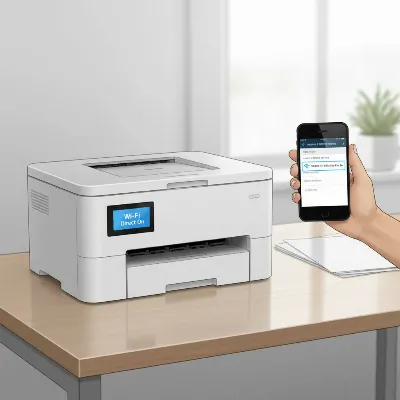 A user connecting a smartphone to a laser printer via Wi-Fi Direct in an office setting, illustrating a direct wireless connection without a router.
Reliable Wired Alternatives for Your Laser Printer
While the goal is often “wireless without Wi-Fi,” sometimes a direct wired connection is the most reliable and straightforward solution when no network infrastructure is available. These methods guarantee a stable link, perfect for situations prioritizing consistency over complete cable-free freedom.
USB Connection: The Ubiquitous Direct Cable
The most straightforward and widely supported method for connecting a laser printer to a computer without any network at all is a direct USB connection. This “plug-and-play” approach has been a standard for decades and remains incredibly effective for individual users.
The main advantage of USB is its simplicity and reliability. You don’t need to configure network settings or worry about wireless interference. It’s a highly secure, one-to-one connection, ensuring that your print jobs go directly to your printer without traversing any shared network. This method is especially beneficial for home users, small businesses with dedicated workstations, or for troubleshooting network-related printer issues.
Setup Process:
- Power On: Ensure your laser printer is powered on and ready.
- Connect Cable: Plug one end of a standard USB printer cable (Type-A to Type-B) into your computer’s USB port and the other end into the corresponding port on your printer.
- Driver Installation: In most cases, Windows or macOS will automatically detect the new hardware and attempt to install the necessary drivers. If not, you may need to use the installation CD that came with your printer or download the latest drivers from the printer manufacturer’s official website.
- Add Printer: After drivers are installed, your operating system should list the printer in your “Printers & scanners” settings. You can then select it and begin printing.
Best Use Cases: USB is ideal for a single computer that primarily uses the printer. It’s the most reliable option and bypasses all network complexities, making it a go-to for situations where network setup is problematic or non-existent.
Ethernet Direct-to-PC: A Configurable Wired Path
While an Ethernet port on a printer typically signifies network connectivity via a router, it is possible to connect an Ethernet-enabled laser printer directly to a computer without an intervening network device. This method creates a dedicated, high-speed wired link, mimicking a small, isolated network between just two devices.
This option is particularly useful for advanced users or specific scenarios where a direct, robust wired connection is preferred over wireless, but a USB port might be unavailable or inconvenient. It’s faster than USB for certain types of data transfer and allows for network-like communication without needing a router.
Requirements: You will need an Ethernet cable (Cat5e or Cat6 recommended) and both your laser printer and computer must have active Ethernet ports. While older systems sometimes required a “crossover” Ethernet cable for direct PC-to-PC connections, most modern devices feature “Auto MDI-X” and can use a standard Ethernet cable.
Configuration: The key to this connection is manually assigning static IP addresses, as there’s no router to automatically provide them.
- Connect Cable: Plug one end of the Ethernet cable into your printer’s Ethernet port and the other end into your computer’s Ethernet port.
- Configure Printer’s IP Address: Access your printer’s network settings (often via its control panel menu) and set a static IP address. Choose an address from a private range, for example,
192.168.1.2, with a subnet mask of255.255.255.0. Do not set a default gateway. - Configure Computer’s IP Address: On your computer (Windows/macOS), go to your network adapter settings for the Ethernet port. Manually assign a static IP address that is in the same subnet as the printer but distinct. For example, if the printer is
192.168.1.2, set your computer to192.168.1.1with the same subnet mask (255.255.255.0). Again, leave the default gateway empty. - Add Printer: Once both devices have static IPs in the same range, your computer should be able to discover the printer. Add it via your operating system’s “Printers & scanners” settings, typically by choosing to add a network printer and entering the printer’s static IP address.
When to Use: This method is more involved than USB but provides a stable and fast connection, ideal for dedicated printing stations or when you need network-like control over the printer’s settings without a full network setup.
Advantages and Considerations of Non-Wi-Fi Connectivity
Opting for direct or non-Wi-Fi wireless connections for your laser printer brings a unique set of benefits and practical considerations that can significantly impact your printing experience. Understanding these aspects helps you make an informed decision for your specific needs.
Key Benefits
Choosing to connect your laser printer without relying on a traditional Wi-Fi network offers several distinct advantages. Primarily, it often leads to enhanced security. By establishing a direct link via Wi-Fi Direct, Bluetooth, or USB, your print data travels directly between your device and the printer, minimizing exposure to other devices on a shared network. This can be crucial in environments handling sensitive information.
Direct connections ensure no network congestion. Unlike a shared Wi-Fi network where bandwidth is divided among all connected devices, a direct link dedicates the entire communication channel to your printing task, potentially leading to faster and more consistent print speeds, especially for large documents. This also contributes to simplified setup for single-use scenarios, eliminating the need to configure network passwords or troubleshoot router-related issues. For mobile or temporary setups, the portability and quick deployment of a Wi-Fi Direct or Bluetooth enabled laser printer are invaluable, allowing you to print from virtually anywhere.
Practical Considerations
While direct connections offer compelling benefits, there are also practical limitations to consider. Range for wireless methods is a significant factor; Bluetooth typically offers a very short range (around 30 feet), and even Wi-Fi Direct is optimized for closer proximity than a router-based Wi-Fi network. This means your printing device needs to be relatively close to the laser printer.
Another consideration is driver management. While many operating systems automatically install basic drivers, achieving full functionality might require installing manufacturer-specific drivers, particularly for USB or less common Bluetooth laser printers. For Ethernet direct-to-PC connections, the need for manual IP configuration can be a hurdle for less technically inclined users, as it requires specific knowledge of network addressing. Finally, these direct connection methods often support limited concurrent connections. Wi-Fi Direct might allow a few devices, but generally, only one device can actively send print jobs at a time, unlike a network printer accessible by many users simultaneously.
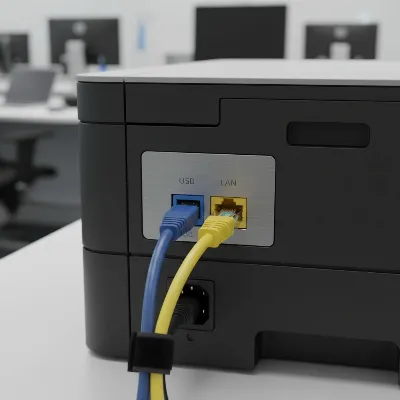 Close-up of the back of a laser printer showing USB and Ethernet ports, illustrating direct wired connection options.
Choosing the Best Connection Method for Your Needs
Selecting the optimal connection method for your wireless laser printer without Wi-Fi depends heavily on your specific environment, technical comfort, and printing habits. It’s about finding the right balance between convenience, speed, and reliability.
Assess Your Printing Environment
First, consider where and how you typically print. Are you in a home office with a single computer, a temporary workspace with no network infrastructure, or frequently on the go? For a stationary setup with one main computer, a USB connection offers unparalleled simplicity and reliability. If portability and quick, on-the-spot printing from a mobile device are key, Wi-Fi Direct or Bluetooth (for very short distances) could be ideal. Security is also a factor; direct connections inherently offer a more private channel than printing over a shared network.
Evaluate Your Printer’s Capabilities
Not all laser printers are created equal when it comes to direct connectivity. Before committing to a method, check your printer’s specifications. Does it support Wi-Fi Direct? Does it have a Bluetooth module, or is it compatible with a Bluetooth adapter? What types of USB ports does it have, and is there an Ethernet port? Modern laser printers, especially those marketed as “wireless,” often include Wi-Fi Direct, making it a common and convenient feature to look for. Older models might only offer USB and sometimes Ethernet. Understanding these built-in options will narrow down your choices considerably.
User Comfort with Technical Setup
Your level of technical comfort is another crucial determinant. If you prefer a truly plug-and-play experience, USB is your best bet. Wi-Fi Direct is generally straightforward, requiring you to connect to a new Wi-Fi network and enter a password, which most users can manage. Bluetooth pairing is also user-friendly. However, setting up a direct Ethernet connection with static IP addresses requires a more advanced understanding of network configuration. If you’re not comfortable with manual IP settings, it’s best to stick to the simpler alternatives.
Top Laser Printer Features for Direct Connectivity
When searching for a laser printer that excels in direct connectivity without a traditional Wi-Fi network, certain features become paramount. Focusing on these capabilities will ensure your printer is versatile and reliable for your unique setup.
Look for laser printers that explicitly state Wi-Fi Direct support. This is the gold standard for wireless printing without a router, offering a robust and relatively fast direct connection to your devices. Manufacturers like HP, Brother, Canon, and Samsung often include Wi-Fi Direct in their “wireless” laser printer lines. Models with intuitive control panels or built-in LCD screens will make it easier to enable Wi-Fi Direct and retrieve the necessary SSID and password.
For wired alternatives, ensure the printer has a standard USB-B port, which is almost universally available and provides the simplest direct connection. If you anticipate needing a faster, more dedicated wired link between your PC and printer without a router, a laser printer with a dedicated Ethernet port is essential. While requiring more advanced setup (static IP configuration), it offers a stable and high-speed connection.
While less common, some compact or mobile laser printers may offer Bluetooth connectivity. If printing from a mobile device over short distances is a primary need and Wi-Fi Direct isn’t an option, seek out models with this feature, or verify compatibility with a USB Bluetooth adapter. Prioritizing these direct connectivity features ensures that your chosen laser printer will integrate seamlessly into environments where traditional Wi-Fi is absent or undesirable.
Conclusion
Connecting a wireless laser printer doesn’t always require a traditional Wi-Fi router. As we’ve explored, versatile alternatives such as Wi-Fi Direct, Bluetooth, USB, and direct Ethernet connections offer reliable pathways to get your documents printed. Whether you prioritize the immediate, cable-free convenience of Wi-Fi Direct, the short-range utility of Bluetooth, the unwavering simplicity of a USB cable, or the configurable reliability of an Ethernet direct-to-PC link, a solution exists for nearly every scenario. Understanding these methods empowers you to maintain seamless printing capabilities, ensuring your laser printer performs efficiently regardless of your network environment. Consider your specific needs, technical comfort, and printer features to unlock the full potential of direct printing. Which direct connection method best suits your unique printing challenges?
Frequently Asked Questions
Can I print wirelessly without a router?
Yes, absolutely. The most common method is using Wi-Fi Direct, which allows your device (laptop, smartphone, tablet) to connect directly to your printer, creating a private wireless link without needing an intermediate Wi-Fi router. Some printers also offer Bluetooth connectivity for short-range wireless printing.
Is Wi-Fi Direct secure?
Wi-Fi Direct connections are generally considered secure for direct printing between devices. They often use WPA2 encryption, similar to traditional Wi-Fi networks, and require a password (or PIN) for connection, preventing unauthorized access to your printer. Since it’s a direct, peer-to-peer connection, it isolates your print job from your main network.
Do all wireless laser printers have Wi-Fi Direct?
While many modern wireless laser printers feature Wi-Fi Direct, it’s not universal. Manufacturers integrate different features across models and price points. Always check the printer’s specifications or product description for explicit mention of “Wi-Fi Direct” or “Wireless Direct” before purchasing if this is a crucial feature for your needs.
What’s the difference between Wi-Fi and Wi-Fi Direct?
Wi-Fi typically refers to connecting devices to a central router (an access point) to form a local area network and access the internet. Wi-Fi Direct, on the other hand, allows devices to connect directly to each other without a router. With Wi-Fi Direct, one device acts as a temporary access point, enabling a peer-to-peer wireless connection.
Can I use a USB cable with a “wireless” printer?
Yes, almost all “wireless” laser printers still include a USB port for a direct wired connection. This provides the most straightforward and reliable way to connect your printer to a single computer, bypassing all network requirements. It’s an excellent fallback or primary method when wireless connectivity without a router is not feasible or desired.
Get our weekly buyer guide
Practical specs, not advice. Unsubscribe anytime.

I tried the USB connection method for my new Canon laser printer, and while it works, I found it a bit cumbersome. It’s great for a single computer, but I was hoping for something that would let me print from my tablet too without a full network. The setup was straightforward, but I might look into a different solution for more flexibility down the line. Still, it’s a solid backup.
As someone who often works from temporary sites, the idea of connecting a laser printer without a traditional Wi-Fi router is crucial. I’ve used Bluetooth for smaller print jobs in the past, but the detailed explanation of Wi-Fi Direct here has me rethinking my approach for larger documents. It’s great to have these alternatives for seamless printing when a shared network isn’t an option. Very informative!
I’ve been struggling with my home office setup since I moved to a new apartment with spotty Wi-Fi. The Wi-Fi Direct method mentioned here was a lifesaver! My HP LaserJet connects directly to my laptop now, and printing is so much faster and more reliable. No more dropped connections in the middle of a big print job. Highly recommend trying this if you’re in a similar situation.
This was really helpful for understanding how to get my old Brother laser printer working without relying on my flaky router. I ended up using a direct Ethernet connection to my desktop, and it’s been rock solid. The only minor complaint is that it’s not as convenient for printing from my phone, but for my main work computer, it’s perfect. Good to know there are options beyond just Wi-Fi.