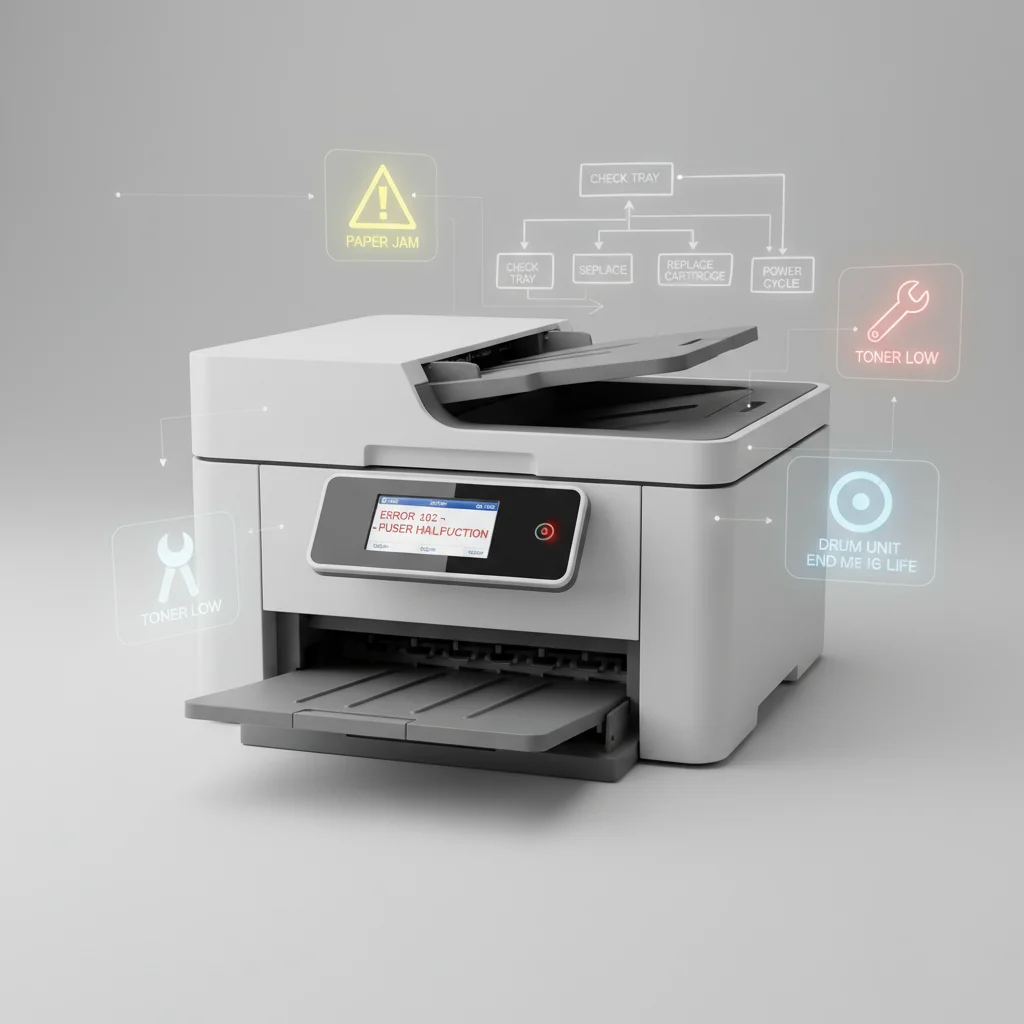
Encountering a laser printer error code can be frustrating, but many common issues can be resolved with simple troubleshooting steps. Approximately 70% of all laser printer errors are related to paper jams, toner issues, or connectivity problems, which can often be fixed without professional help. Understanding these codes and their solutions can save you time and money, getting your printer back to optimal performance quickly.
Understanding Common Error Codes
Laser printers use a variety of error codes to communicate problems, ranging from simple warnings to critical failures. For instance, a common code like “E01” or “Paper Jam” typically indicates a physical obstruction in the paper path. Codes related to toner, such as “Toner Low” or “Replace Toner,” are self-explanatory, while more complex codes might point to fuser unit issues or driver conflicts. Always consult your printer’s manual for a precise definition of specific codes, as they can vary by manufacturer and model.
Troubleshooting Paper Jams and Feed Errors
Paper jams are among the most frequent laser printer problems. If your printer displays a paper jam error, first turn off the printer and unplug it. Carefully open all access panels and gently remove any visible paper. Avoid tearing the paper, as small pieces left inside can cause future jams. Check the paper tray, duplexer, and output tray. Ensure the paper is loaded correctly, not overfilled, and that it meets the printer’s specifications. If the error persists after clearing the jam, there might be a sensor issue or a foreign object lodged deeper within the mechanism.
Resolving Toner and Cartridge Issues
|
Our Picks for the Best Laser Printer in 2026
As an Amazon Associate I earn from qualifying purchases.
|
||
| Num | Product | Action |
|---|---|---|
| 1 | Brother DCP-L2640DW Wireless Compact Monochrome Multi-Function Laser Printer with Copy and Scan, Duplex, Black & White Output | Includes Refresh Subscription Trial(1), (Renewed Premium) |

|
| 2 | Brother DCP-L2640DW Wireless Compact Monochrome Multi-Function Laser Printer with Copy and Scan, Duplex, Mobile, Black & White | Includes Refresh Subscription Trial(1), Works with Alexa |
|
| 3 | HP LaserJet MFP M235sdw All-in-One Laser Wireless Printer, Scan/Copy, Black & White, Duplex, Best-for-Office |
|
| 4 | HP Laserjet MFP M234dw Wireless Printer, Print, scan, Copy, Fast speeds, Easy Setup, Mobile Printing, Best-for-Small Teams, Instant Ink Eligible |
|
| 5 | Brother HL-L2405W Wireless Compact Monochrome Laser Printer with Mobile Printing, Black & White Output | Includes Refresh Subscription Trial(1), Works with Alexa |
|
| 6 | Brother HL-L2460DW Wireless Compact Monochrome Laser Printer with Duplex, Mobile Printing, Black & White Output | Includes Refresh Subscription Trial(1), Works with Alexa |
|
| 7 | Brother HLL3280CDW Wireless Compact Color Laser Printer, Duplex, Mobile Printing & Ethernet | Includes 2 Month Refresh Subscription Trial¹, Amazon Dash Replenishment Ready (Renewed Premium) |
|
| 8 | Brother HLL6210DW Business Monochrome Laser Printer with Large Paper Capacity, Wireless and Gigabit Ethernet Networking, Advanced Security Features and Mobile Printing (Renewed Premium) |
|
| 9 | Brother MFC-L2820DW Wireless Compact Monochrome All-in-One Laser Printer with Copy, Scan and Fax, Duplex, Black & White | Includes Refresh Subscription Trial(1), Works with Alexa |
|
| 10 | Canon imageCLASS MF284dw Wireless Black & White Laser Printer – All-in-One for Home Use, Print/Copy/Scan, 2-Sided Printing, 35 PPM, Auto Doc Feeder, Mobile Device Compatible, Starter Toner Included |
|
Toner-related errors can range from “Toner Low” to “Toner Empty” or even “Toner Cartridge Not Recognized.” For “Toner Low” warnings, you can often continue printing for a short period, but it’s wise to have a replacement ready. If the cartridge isn’t recognized, try removing and reinserting it, ensuring it’s seated correctly. Sometimes, a faulty chip on a new cartridge can be the culprit. Always use genuine or high-quality compatible toner cartridges to avoid recognition issues and potential damage to your printer.
Addressing Connectivity and Driver Problems
Connectivity issues often manifest as “Printer Offline” or “No Connection” errors. For wired connections, check the USB or Ethernet cable for secure connections at both ends. For wireless printers, ensure the printer is connected to the correct Wi-Fi network and that the signal is strong. Restarting both the printer and your computer can often resolve temporary network glitches. Driver problems can also cause errors; ensure your printer drivers are up-to-date by visiting the manufacturer’s website. Reinstalling the driver can sometimes fix persistent communication issues.
When to Seek Professional Help
While many errors are user-fixable, some complex codes or persistent problems may require professional intervention. If you encounter errors related to the fuser unit, transfer belt, or other internal components, it’s usually best to contact a qualified technician. Attempting to repair these parts without proper knowledge can lead to further damage or personal injury. Always prioritize safety and consult your printer’s warranty before attempting any advanced repairs.
- Check for paper jams in all printer access points.
- Verify toner cartridge installation and level.
- Ensure all cables are securely connected.
- Update or reinstall printer drivers.
- Restart both printer and computer.
Get our weekly buyer guide
Practical specs, not advice. Unsubscribe anytime.
